Friday, August 31, 2012

Quick and Dirty way to create a custom theme in Magento


Copy HTML file
1) GO TO app/design/frontend/default
2) Make a Copy of Modern Theme and rename new theme to custom

Copy CSS file
1) Go To Skin/frontend/default
2) Make a copy of Modern folder and rename it custom


Now Go to Admin section 

MENU STRUCTURE Will be System->Designs  (index.php/admin/system_design/index/key/aab859ffebbcf38f6f93e5223088ebcd/)


     Please select Custom design from Drop Down .


Magento Theme integration

Magento Templates

The template system that ships with Magento may seem a little complex at first, but the price we pay in complexity affords us a great deal of flexibility and power, as we’ll discover.
There are three components to the template system:
  • PHP template files
  • PHP block classes
  • XML layout configuration
The template files contain what you’d expect a template system to handle, such as the HTML, JavaScript, and some PHP.
The block classes allow us to move the reusable functionality from the PHP template files into PHP classes, which can be used again on different template files in the future.  As a rule, all template files will have an associated block class.  Block classes are just normal PHP classes, and can be accessed in the template through the $this variable.
Various helper methods, such as getSkinUrl($path) or getUrl($path), are contained in all block classes. These methods are then used in a template file, by calling: $this->getSkinurl('images/logo.png'), for example.
Along with providing useful methods to the template files, blocks are also used to decide how to render the template file to the user. Each block has a toHtml() method for this purpose. Usually, the toHtml() method will simply parse the template file and output it to the user, but we could override that functionality and return anything we like, such as XML or JSON.
Finally, the XML layout configuration files are the “glue” that pulls together the entire set of template files to be rendered in the browser. In the XML, we can specify what PHP template/block combinations we’d like to load, and the order that we’d like to display them on the page.

Folder Structure

No doubt, one of the first things you’ll notice about Magento is that there are hundreds of folders, and thousands of files. Let’s take a look at a few of the more important ones for modifying templates and layouts:
app/
  code/
    {core,local,community}/
      Company/
        Module/
          Block/
  design/
    frontend/
      base/
        default/
          layout/
          template/
      mytheme/
        default/
          layout/
          template/
        christmas/
          layout/
          template/
  skin/
    frontend/
      base/
        default/
          css/
          images/
        mytheme/
          default/
            css/
            images/
          christmas/
            css/
            images/
All template files will be in the .phtml files found in various folders under the app/design/frontend/{$interface}/{$theme}/template folder.  All layout XML files will be found in the app/design/frontend/{$interface}/{$theme}/layout folder.  All blocks will be in the app/code/{core,local,community}/{$company}/{$module}/Block folder.
But what are those interface and theme names in there? An interface, in Magento template terms, is a collection of themes. A theme, therefore, is just a bunch of layout and template files. Typically, in a given Magento installation, you’ll have one interface with many themes. The interface will define the overall layout of your ecommerce site, while a theme sits on top of it and gives it a particular look. Say you have an interface for your site, and a default theme. When you want to customize your shop for a holiday promotion, for example, you’d just create a new theme in the same interface and switch to that one for the duration of the sale.

The Inclusion Hierarchy

Much like WordPress, Magento relies on a hierarchy to locate theme files. Whenever a module specifies that a layout file needs to be loaded by the system, Magento will look in a number of places.
As an example, let’s say that the Mage_Customer module is requesting that customer.xml be loaded to define the layout for the customer/account/login page we’re trying to display. Let’s also assume that we’ve already created an interface called “sitepoint”; have three themes called “christmas,” “5 for 1,” and “default”; and have specified that we’d like to use the “christmas” theme in the Magento administration area.
Magento will check the following folders, in order, for a file named customer.xml:
  • app/design/frontend/sitepoint/christmas/layout
  • app/design/frontend/sitepoint/default/layout
  • app/design/frontend/base/default/layout
This strategy for locating files is also used for template files and skin files. This means that there’s no need to copy all the layout, template, and skin files across to the Christmas theme; we only copy over the files that we’re going to be changing. Any unchanged files will be located and loaded by heading down the inclusion hierarchy.
This searching strategy makes multiple themes quite manageable.  If, for example, we decide that we’d only like to change the product page’s template, then we just need to copy app/design/frontend/sitepoint/default/template/catalog/product/view.phtml into the app/design/frontend/sitepoint/christmas/template directory. But if we decided that the CSS would stay the same, then we’d leave the styles.css file in skin/frontend/sitepoint/default/css where it is, and it would still be loaded.

An Example Layout File

Let’s take a look at (and dissect) an example layout XML file:
<layout>
  <customer_account_register>
    <block name="wrapper">
      <block type="core/template" template="page/html/header.phtml">
        <block name="navigation" template="page/html/navigation.phtml" />
      </block>
    </block>
  </customer_account_register>
</layout>
There are currently two sections to the file: the section definition and the block definitions.
The section we’re defining is for the /customer/account/register page on the website, which is referenced in the XML as customer_account_register, called the layout handle.
When you’re visiting any page on a website running Magento, pay attention to the URL (with SEO rewriting turned off); they’ll always start with {$module}/{$controller}/{$action}. This gives an enormous clue as to which layout handle in the XML file to edit: {$module}_{$controller}_{$action}.
In the section definition, we list some blocks that we’d like included on the page. As you can see, blocks can either be self-closing (ending with />) or can contain other blocks.
Blocks can have a number of attributes that help us organize and describe how we’d like them to appear on a page. A minimal block definition must contain a block type and a name.
It’s possible to define the template associated with a block by specifying a template attribute. Earlier, we mentioned that all templates must have a block type. This relationship is asymmetrical; we can define a block that does not have a template. That block would simply have to use its toHTML() method to generate its output.

Diving into Template Files

Let’s take a look at the header.phtml file mentioned in the layout XML:
<html>
  <head>
    <title><?php echo $this->getTitle() ?></title>
  </head>
  <body>
    <h1><a href="<?php echo $this->getUrl() ?>"><img src="<?php echo $this->getSkinUrl('images/logo.png') ?>" /></a></h1>
    <?php echo $this->getChildHtml('navigation') ?>
    <p>Welcome to my shop!</p>
We can see usage of the $this variable that was previously mentioned. There are some standard methods that are made available to all blocks, such as:
  • getUrl($path): using the Base URL defined in the Magento administration area, this method will generate a full URL, which is useful if you’re moving from a development environment to production, for example.  Example usage: $this->getUrl('customer/account/login') will produce http://www.example.com/customer/account/login.
  • getSkinUrl($path): this is the same idea as the getUrl() method, but works with the skin directory found in “skin/frontend” and the interface and theme active in the Magento Administration.  The same hierarchical lookup is done on files in the skin directory as is done with template files.
  • getChildHtml($name): this allows us to call nested or child blocks defined in the layout. We’ll be looking at this in more detail shortly.
The getTitle() function in our example layout file is only available to the core/template block—which makes sense, as its role is to output the page’s title element.

Nesting Child Blocks

One of the more powerful methods made available is the getChildHtml() method. In the layout XML above, you can see that the header block has another block nested inside it. Magento won’t know where to output the child’s HTML in the template file, so we need to explicitly define where to put it by calling the getChildHtml($name) method, and providing the name of the child block we want to display as the first argument. Child blocks are a great way to separate out parts of a page into reusable components.

More on Layout Handles

As we previously mentioned, the layout handle maps a URL to a specific area in the layout file. Magento will merge various layout handles on each page load. These layout handles can be extended and modified, but are usually along the lines of:
  • default
  • STORE_{$theme}
  • THEME_frontend_{$interface}_{$theme}
  • {$module}_{$controller}_{$action}
If we want to add content to all pages on the site, it would be silly to have to specify every single handle we could possibly think of, so we just use the <default> handle.
When Magento renders a page to the user, it loads all the layout XML files it can find following the previously discussed inclusion hierarchy, and looks for the above handles in turn. It follows that absolutely any layout XML file could contain a handle to any page in the system.

Referencing Declared Blocks

All of the global blocks are defined in the default handle.
But now we have a problem. What if we want to add something to the header block on some pages, but not others? Does that mean we need to put the header separately into each layout handle? Fortunately for us, no. Using the <reference> tag solves this problem.
The reference tag gives you access to the inside of another block: anything inside that reference tag will be placed inside the target block. How does it know which block to target? You just set the name attribute to be the same as the targeted block. This way, you can add new children to any block from any layout file:
<layout>
  <default>
    <block name="wrapper">
      <block type="core/template" template="page/html/header.phtml">
        <block name="navigation" template="page/html/navigation.phtml" />
      </block>
      <block type="core/template" template="page/html/footer.phtml" />
    </block>
  </default>
  <customer_account_register>
    <reference name="wrapper">
      <block type="core/template" name="customer_hello" template="customer/helloworld.phtml" />
    </reference>
  </customer_account_register>
</layout>

Deleting Declared Blocks

What if, for instance, we’ve defined a block in the default handle, but we want to remove it from the customer_account_register page only? Here’s an example where we get rid of the footer on the customer/account/register page:
<layout>
  <default>
    <block name="wrapper">
      <block type="core/template" template="page/html/header.phtml">
        <block name="navigation" template="page/html/navigation.phtml" />
      </block>
      <block type="core/template" template="page/html/footer.phtml" />
    </block>
  </default>
  <customer_account_register>
    <reference name="wrapper">
      <block type="core/template" name="customer_hello" template="customer/helloworld.phtml" />
      <remove name="footer" />
    </reference>
  </customer_account_register>
</layout>

The Wrapper and Block Ordering

You may have noticed that the header and footer blocks are actually wrapped by a block called wrapper, of type text/list.  To explain how this works, we need to head back to the toHtml() method of a block.
The toHtml() method of the text/list block will inspect all its child blocks, and then, individually, call the toHtml() methods on those child blocks. The order of the blocks being output is, generally, the order in which they appear in the XML; however, we can override this behavior with the after and before attributes. So the wrapper is just a list of other blocks that will be displayed in a certain order.
Here’s the revised layout XML with some modifications to the positioning of the blocks:
<layout>
  <default>
    <block name="wrapper">
      <block type="core/template" template="page/html/header.phtml" >
        <block name="navigation" template="page/html/navigation.phtml" />
      </block>
      <block type="core/template" template="page/html/footer.phtml"/>
    </block>
  </default>
  <customer_account_register>
    <reference name="wrapper">
      <block type="core/template" name="customer_hello" template="customer/helloworld.phtml" after="header" />
    </reference>
  </customer_account_register>
</layout>

Best Practices

Although we’ve yet to fully explore layouts and templates to their fullest extents, I feel an obligation to start us off with some discussion about best practices. With Magento being such a difficult beast to tame, even for the most experienced developers, it’s easy to fall into the trap of inadvertently flouting best practice. With that in mind, here are a few guiding principles for your theme development.

Hands off base/default

As discussed, base/default is the theme used by Magento as a fallback for when it can’t find the template file in all the more important locations in the system. It’s for this reason that Magento places all the default templates and layout files here. When you update Magento, the default templates will likely be modified. Any such updates will be written to the base/default folder.
If you’ve used the base/default theme to contain your templates and layout changes, there’s a high probability that they’ll be lost with the update. It’s for this reason that if you’d like your client to be able to upgrade their Magento installation, do not ever modify base/default!
The quickest and easiest way to get around this problem is to create a new interface with a default theme (by simply creating a new folder in app/design/frontend/{$interface}/default); copy any file you’d like to change over to that folder (following the same directory structure as base/default) and make your changes there.

Use local.xml

You’ll notice that the layout folder of base/default contains tens of XML files, all relating to various different modules in the system. When creating your own theme that overrides the base/default functionality, it’s generally considered best practice to let Magento load the base/default customer.xml, so you should avoid placing your own customer.xml in your theme’s layout folder. Instead, apply your changes to a different file called local.xml.
The local.xml file lives in your app/design/frontend/{$interface}/{$theme}/layout directory, and will likely contain numerous update handles by the end of the theming process.
Magento loads the local.xml file automatically, so any changes you make will be pulled into the site.

A Real World Example

So we have the theory nailed, right?  Let’s get started and make the beginnings of our very own theme for Magento. Before we begin, you should download Magento and install it on your local web server or virtual machine.

Setting Up

First things first, let’s create a folder to contain our own files. Create the following folder structure and files (replacing mycompany with your desired interface name):
app/design/frontend/
  mycompany/
    default/
      layout/
        local.xml
      template/
skin/frontend/
  mycompany/
    default/
      images/
      css/
The local.xml file can remain empty for the moment.
Next, let’s enable our theme in the Magento administration area. Navigate to System->Design in the administration dashboard. Choose Add Design Change and select your new theme. As you can see, you can set a design change to come into effect during certain days of the year. This would be perfect for the Christmas example we used earlier on, but for now just leave those fields blank to have your design become the default.
If you refresh the front end, you’ll see that nothing has changed. This is normal, because the pages are cached. To disable caching so that you can see your changes during development, go to System->Cache Management and disable everything.
Back in the front end, you’ll notice that all the styles have disappeared. Take a look at the source of the page. All the URLs for style sheets and images are still pointing to base/default. This is normal: Magento is following the include hierarchy, having noticed that the files in question don’t exist in our theme yet. base/default doesn’t have a styles.css file, so all the styles have disappeared. To give ourselves a starting point, let’s take the style sheets from skin/frontend/default/default/css and put them into our skin/frontend/mycompany/default/css folder. Likewise, move the images from default/default to the images folder in your new theme. As you modify the theme, you can delete any of these that you won’t be using, but for now it’s good to have it to look at while you work.

Removing a Block

Magento ships with a “Back to School” advert and the PayPal logo in the right-hand column of the home page. Turns out that what we sell is irrelevant to students, and we don’t accept PayPal, so let’s remove them. We’d like to remove the blocks from every page on the site, so we want to place the removal code in the default layout handle.
First, we need to identify the names of the blocks. In order to work out the names of the blocks for our further steps, we’re going to have to enable block debugging. Go to System->Configuration->Developer->Debug, and enable the Template Path Hints and Add Block Names to Hints options. (If you don’t see these options, make sure you’re in anything but the global scope switcher in the top left of your screen)
Now, when you reload the front end, you’ll see the name of every block displayed over it on the page. We need to search through the layout XML files in app/design/frontend/base/default/layout/ to find the name of the block with the type and template we’re looking for. If your editor or IDE has a folder-wide search option, this is a great time to put it to use!
The “Back to School” advert has the block type Mage_Core_Block_Template and the template callouts/right_col.phtml. The PayPal logo has the block type Mage_Paypal_Block_Logo and the template paypal/partner/logo.phtml.
After some detective work, we find the PayPal block defined as the following in paypal.xml:
<block name="paypal.partner.right.logo" template="paypal/partner/logo.phtml"/>
And the “Back to School” block defined as the following in catalog.xml:
<block name="right.permanent.callout" template="callouts/right_col.phtml">
  <action method="setImgSrc"><src>images/media/col_right_callout.jpg</src></action>
  <action method="setImgAlt" translate="alt" module="catalog"><alt>Keep your eyes open for our special Back to School items and save A LOT!</alt></action>
</block>
Don’t worry about those action tags; what’s important is that we now have our names: paypal.partner.right.callout and right.permanent.callout.
The XML, which is to be placed in our local.xml, for this is as follows:
<?xml version="1.0"?>
<layout>
  <default>
    <remove name="paypal.partner.right.logo" />
    <remove name="right.permanent.callout" />
  </default>
</layout>
Refresh the page and you should find the blocks have disappeared!

Reorganizing the Sidebar

Now that we’ve removed those blocks, we have a sidebar containing a mini cart, “compare products” box, and a poll. We’ve only just launched, so it might be a nice idea to make our poll more prominent to attract feedback from our customers. Let’s move the poll to the top of the column.
The way we’ll do that is by deleting the blocks, and then adding them back in with the correct before and after attributes to achieve our desired layout.
Let’s take a look at the various sections that make up the sidebar. We’re looking for a <reference name="right">, because the blocks appear in the right column; we’re also looking for the block type and template names we can see in the red boxes on the front end.
We find our all-important poll definition in our right sidebar:
<default>
  <reference name="right">
    <block type="poll/activePoll">
      <action method="setPollTemplate"><template>poll/active.phtml</template><type>poll</type></action>
      <action method="setPollTemplate"><template>poll/result.phtml</template><type>results</type></action>
    </block>
  </reference>
</default>
Avoid being intimidated by those action tags; all they do is allow you to call a method from the block class from within the layout file. We can see that there are currently no before or after attributes defined for the block. Our local.xml file now can be updated to:
<?xml version="1.0"?>
<layout>
  <default>
    <remove name="paypal.partner.right.callout" />
    <remove name="right.permanent.callout" />
    <reference name="right">
      <remove name="right.poll" />
      <block type="poll/activePoll" before="cart_sidebar">
        <action method="setPollTemplate"><template>poll/active.phtml</template><type>poll</type></action>
        <action method="setPollTemplate"><template>poll/result.phtml</template><type>results</type></action>
      </block>
    </reference>
  </default>
</layout>

Add an Advert

Okay, so it’s all going great. We’ve sorted out our right-hand column, and we’re receiving a load of user feedback through the poll. Super Big Corporation, Inc. has approached us, and they’d like to sponsor our site in return for showing an advert in the right-hand column. Fantastic news! Let’s do it.
The first thing we need to do is make a template. We can put this in any folder in app/design/frontend/mycompany/default/template; we’ll create a new folder called sponsor, and a file inside it called superbig.phtml. That file can contain whatever HTML you want to display as the advertisement.
Next, we need to add it to the layout XML. We can use the block type core/template, as we’re not going to require any functionality that warrants the creation of a new block:
<?xml version="1.0"?>
<layout>
  <default>
    <remove name="paypal.partner.right.callout" />
    <remove name="right.permanent.callout" />
    <reference name="right">
      <remove name="right.poll" />
      <block name="right.poll" before="cart_sidebar">
        <action method="setPollTemplate"><template>poll/active.phtml</template><type>poll</type></action>
        <action method="setPollTemplate"><template>poll/result.phtml</template><type>results</type></action>
      </block>
      <block type="core/template" template="sponsor/superbig.phtml" />
    </reference>
  </default>
</layout>

Adding a New Style Sheet

We want to add some customization to the current base/default style sheet that’s being loaded at the moment. Let’s include another CSS file, so that we can add our own tweaks.
The loading of assets on the page, such as JavaScript and CSS, is handled by Magento’s head block in the layout file.

The head Block

Let’s take a look at the head block as it stands. It’s located in page.xml:
<block name="head" as="head">
  <action method="addJs"><script>prototype/prototype.js</script></action>
  <action method="addJs" ifconfig="dev/js/deprecation"><script>prototype/deprecation.js</script></action>
  <action method="addJs"><script>lib/ccard.js</script></action>
  <action method="addJs"><script>prototype/validation.js</script></action>
  <action method="addJs"><script>scriptaculous/builder.js</script></action>
  <action method="addJs"><script>scriptaculous/effects.js</script></action>
  <action method="addJs"><script>scriptaculous/dragdrop.js</script></action>
  <action method="addJs"><script>scriptaculous/controls.js</script></action>
  <action method="addJs"><script>scriptaculous/slider.js</script></action>
  <action method="addJs"><script>varien/js.js</script></action>
  <action method="addJs"><script>varien/form.js</script></action>
  <action method="addJs"><script>varien/menu.js</script></action>
  <action method="addJs"><script>mage/translate.js</script></action>
  <action method="addJs"><script>mage/cookies.js</script></action>
  <action method="addCss"><stylesheet>css/styles.css</stylesheet></action>
  <action method="addItem"><type>skin_css</type><name>css/styles-ie.css</name><params/><if>lt IE 8</if></action>
  <action method="addCss"><stylesheet>css/widgets.css</stylesheet></action>
  <action method="addCss"><stylesheet>css/print.css</stylesheet><params>media="print"</params></action>
  <action method="addItem"><type>js</type><name>lib/ds-sleight.js</name><params/><if>lt IE 7</if></action>
  <action method="addItem"><type>skin_js</type><name>js/ie6.js</name><params/><if>lt IE 7</if></action>
</block>
As we’ve previously mentioned, the action tags allow us to call the methods associated with the block classes.
There are a number of methods defined for this block, but we’re only really interested in a couple:
  • addJs: this allows us to include JavaScript that’s located in the /js directory at the root of our Magento installation.
  • addItem: this allows us to include assets that we have in our skin directory for our theme.
The syntax for including a style sheet is:
<action method="addItem"><type>$type</type><name>$name</name><params>$params</params><if>$if</if></action>
The values for $type that you’ll most likely use in a career as a Magento designer/developer are:
  • skin_js
  • skin_css
As their names imply, they load JavaScript and CSS respectively, located in the skin folder of your theme, following the inclusion hierarchy if not found.
The $name refers to the location of your asset from the skin/frontend/mycompany/default/ folder, so a style sheet in skin/frontend/mycompany/default/css/updates.css will have the $name css/updates.css.
For style sheets, the $params value can be used to pass parameters to the <link /> tag, such as the media the style sheet is applicable to.
The $if value allows you to wrap a style sheet in conditional comments for Internet Explorer.

Adding to the head Block

So we’ve had an introduction to the head block and how we can use it to include various assets; let’s add our own style sheet.
We’d like the style sheet to be loaded on every page, so we’ll use the default layout handle. We’re updating an already defined block, so we’ll be using a reference.
Our updated layout code now looks like:
<?xml version="1.0"?>
<layout>
  <default>
    <remove name="paypal.partner.right.callout" />
    <remove name="right.permanent.callout" />
    <reference name="right">
      <remove name="right.poll" />
      <block type="poll/activePoll" before="cart_sidebar">
        <action method="setPollTemplate"><template>poll/active.phtml</template><type>poll</type></action>
        <action method="setPollTemplate"><template>poll/result.phtml</template><type>results</type></action>
      </block>
    </reference>
    <reference name="head">
      <action method="addItem">
        <type>skin_css</type>
        <name>css/updates.css</name>
        <params />
        <if />
      </action>
    </reference>
  </default>
</layout>

Magento Multi domain functionality


1: Categories

First, will need to create our Categories.  Since all three websites will be sharing the same catalog, we will be using the default root Category in Catalog -> Categories -> Manage Categories and will be creating our categories under that root category (i.e. Clothing, Electronics, etc.).

image

These categories (Clothing, Electronics) should be set as both “Is Active” from the General Information tab and “Is Anchor” from the Display Settings tab for them to appear on the frontend of your Magento shop.  (***NOTE: If the websites will not be sharing the same catalog, a Root Category must be created for each website.  Thus, if there are 3 websites, there will be 3 Root Categories with subcategories under them.)


2: Store Configuration in the Magento Admin

1. Now that we have created our Categories, it’s time to create our websites by going to System -> Manage Stores and clicking the “Create Website” button.


  • Name – domain name of our new website
  • Code – a parameter that will be used in configuring the Apache web server to point to that particular domain name

image

2. Once the website has been created, we’ll create the store corresponding to this website by clicking on the “Create Store” button in System -> Manage Stores.

  • Website – website to which this store will be associated
  • Name – the same as the website name
  • Root Category – the root category that will be used for this store. (Refer to Step 1 for Details)

image

3. Then, we create the store view which is the interface that the customer will be able to access on the frontend.  Click the “Create Store View” button in System -> Manage Stores.


  • Store – store to which this view will be associated
  • Name – name of this store view (i.e. English Version, German Version, etc.)
  • Code – code for this store view
  • Status – if enabled, this store view will be accessible from our frontend, otherwise, it will not be accessible

  • image
    4. After the Store has been created, we need to configure the Unsecure Base URL and Secure Base URL under System -> Configuration -> General -> Web.  Before we set their respective base URLs, we first need to ensure that the configuration scope is set to the domain1.com website to define which site we are working on.
    image

    Then, we modify the base URLs for both Unsecure:

    image

    and Secure:

    image

    with the corresponding domain name by unchecking the ”Use default [STORE VIEW]” checkbox and then save the configuration.

    5. Now we just repeat Steps 2-4 for the other two websites, domain2.com and domain3.com by replacing the fields with their respective information.


    3: Store Configuration in the Server

    1. Now we re-configure the Apache configuration file, httpd.conf, for all domains to set the DocumentRoot to our Magento directory.  In this case, the directory is /var/www/http

    <VirtualHost *:80>
        ServerAdmin webmaster@domain1.com
        DocumentRoot /var/www/http
        ServerName domain0.com
    </VirtualHost>
    
    <VirtualHost *:80>
        ServerAdmin webmaster@domain2.com
        DocumentRoot /var/www/http
        ServerName domain1.com
    </VirtualHost>
    
    <VirtualHost *:80>
        ServerAdmin webmaster@domain3.com
        DocumentRoot /var/www/http
        ServerName domai2.com
    </VirtualHost>
    

    2. Edit the .htaccess file at /var/www/http/.htaccess and add the following lines below:


    SetEnvIf Host www\.domain1\.com MAGE_RUN_CODE=domain1_com
    SetEnvIf Host www\.domain1\.com MAGE_RUN_TYPE=website
    SetEnvIf Host ^domain1\.com MAGE_RUN_CODE=domain1_com
    SetEnvIf Host ^domain1\.com MAGE_RUN_TYPE=website
    
    SetEnvIf Host www\.domain2\.com MAGE_RUN_CODE=domain2_com
    SetEnvIf Host www\.domain2\.com MAGE_RUN_TYPE=website
    SetEnvIf Host ^domain2\.com MAGE_RUN_CODE=domain2_com
    SetEnvIf Host ^domain2\.com MAGE_RUN_TYPE=website
    
    SetEnvIf Host www\.domain3\.com MAGE_RUN_CODE=domain3_com
    SetEnvIf Host www\.domain3\.com MAGE_RUN_TYPE=website
    SetEnvIf Host ^domain3\.com MAGE_RUN_CODE=domain3_com
    SetEnvIf Host ^domain3\.com MAGE_RUN_TYPE=website
    

    3. Restart Apache Server

    If you are on a Red Hat based distribution, you’ll be able to type service apache restart.  For other distributions, you’ll want to type apachectl restart.  (***NOTE: The second option here is different than “apachectl graceful” which will run a graceful restart and reload configuration files, without terminating current connections.  We don’t have any visitors to our site yet, so it’s okay to do a “apachectl restart”.)

    4: We’re Ready to Go!

    After we’ve complete all of these steps we should now see all 3 domains in our backend:

    image

    All that’s left now is to add products to the catalog and give each site a custom theme if we wish to do so.  Many people are taking advantage of Magento’s powerful multi-store functionality, whether it’s to set up stores with multiple languages, different catalogs and even the same catalogs (as in our example) with different front ends as a marketing vehicle.  No matter which you decide to use Magento’s powerful features for, we hope this post will provide a good starting point to help you get there!

EAV Module in Magento


What is EAV
Entity-Attribute-Value model (EAV), also known as object-attribute-value model and open schema is a data model that is used in circumstances where the number of attributes (properties, parameters) that can be used to describe a thing (an "entity" or "object") is potentially very vast, but the number that will actually apply to a given entity is relatively modest. In mathematics, this model is known as a sparse matrix.
Another metaphor that helps me wrap my head around it is "EAV brings some aspects of normalization to the database table schema". In a traditional database, tables have a fixed number of columns
+------------------+
| products         |
+------------------+
| product_id       |
| name             |
| price            |
| etc..            |
+------------------+

+------------+----------------+------------------+---------+
| product_id | name           | price            | etc...  |
+------------+----------------+------------------+---------+
| 1          | Widget A       | 11.34            | etc...  |
+------------+----------------+------------------+---------+
| 2          | Dongle B       | 6.34             | etc...  |
+------------+----------------+------------------+---------+
Every product has a name, every product has a price, etc.
In an EAV Model, each "entity" (product) being modeled has a different set of attributes. EAV makes a lot of sense for a generic eCommerce solution. A store that sells laptops (which have a CPU speed, color, ram amount, etc) is going to have a different set of needs than a store that sells yarn (yarn has a color, but no CPU speed, etc.). Even within our hypothetical yarn store, some products will have length (balls of yarn), and others will have diameter (knitting needles).
There aren't many open source or commercial databases that use EAV by default. There are none that are available on a wide variety of web hosting platforms. Because of that, the Magento engineers have built an EAV system out of PHP objects that use MySQL as a data-store. In other words, they've built an EAV database system on top of a traditional relational database.
In practice this means any Model that uses an EAV resource has its attributes spread out over a number of MySQL tables.
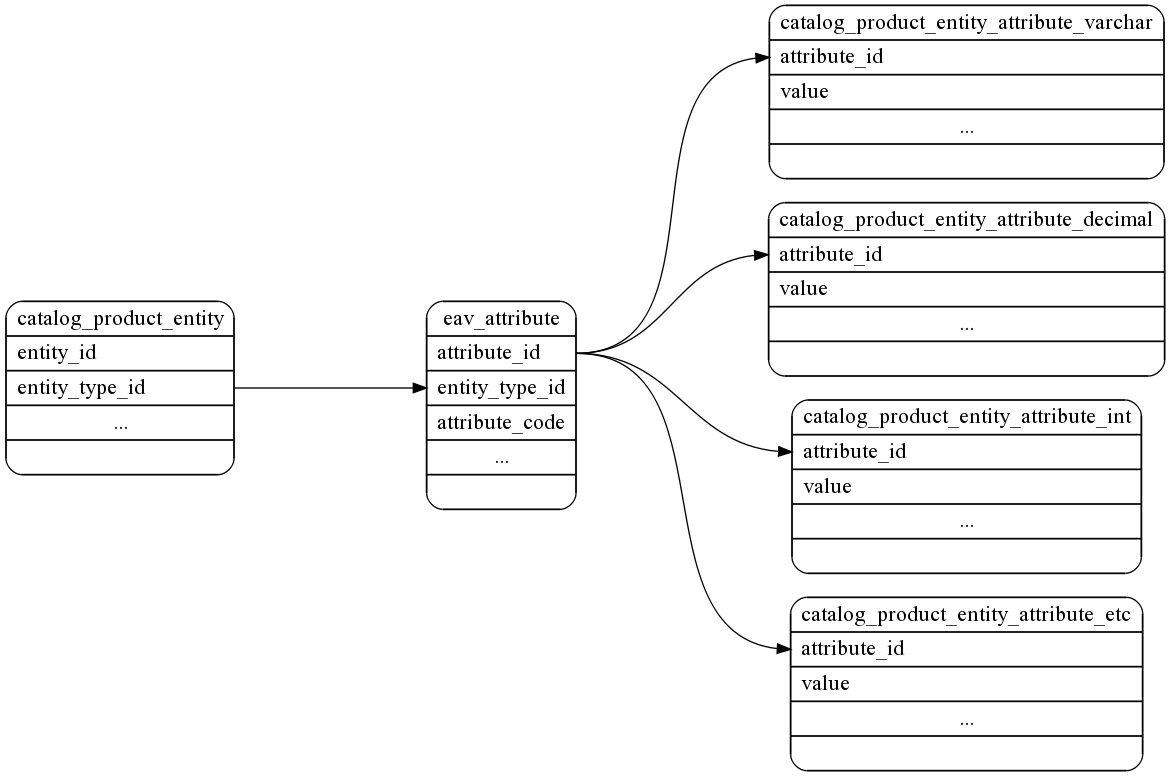
http://alanstorm.com/2009/img/magento-book/eav.png
The above diagram is a rough layout of the database tables Magento consults when it looks up an EAV record for the catalog_product entity. Each individual product has a row in catalog_product_entity. All the available attributes in the entire system (not just for products) are stored in eav_attribute, and the actual attribute values are stored in tables with names like catalog_product_entity_attribute_varchar,catalog_product_entity_attribute_decimal, catalog_product_entity_attribute_etc.
Beyond the mental flexibility an EAV system gives you, there's also the practical benefit of avoiding ALTER TABLE statements. When you add a new attribute for your products, a new row is inserted into eav_attribute. In a traditional relational database/single-table system, you'd need to ALTER the actual database structure, which can be a time consuming/risky proposition for tables with large data-sets.
The downside is there's no one single simple SQL query you can use to get at all your product data. Several single SQL queries or one large join need to be made.
Implementing EAV
That's EAV in a nutshell. The rest of this articles is a run-through of what's needed to create a new EAV Model in Magento. It's the hairiest thing you'll read about Magento and it's something that 95% of people working with the system will never need to do. However, understanding what it takes to build an EAV Model Resource will help you understand what's going on with the EAV Resources that Magento uses.
Because the EAV information is so dense, we're going to assume you've studied up and are already very familiar with Magento's MVC and grouped class name features. We'll help you along the way, but training wheels are off.
Weblog, EAV Style
We're going to create another Model for a weblog post, but this time using an EAV Resource. To start with, setup and create a new module which responds at the the following URL
http://example.com/complexworld
If you're unsure how to do this, be sure you've mastered the concepts in the previous tutorials.
Next, we'll create a new Model named Weblogeav. Remember, it's the Resource that's considered EAV. We design and configure our Model the exact same way, so let's configure a Model similar to one we created in the first ORM article.
<global>
    <!-- ... -->
    <models>    
        <!-- ... -->
        <complexworld>
            <class>Magentotutorial_Complexworld_Model</class>
            <resourceModel>complexworld_resource_eav_mysql4</resourceModel>
        </complexworld>
        <!-- ... --> 
    </models>
    <!-- ... -->
</global>
You'll notice one difference to setting up a regular Model is the <resourceModel/> name looks a bit more complex (weblog_resource_eav_mysql4).
We'll still need to let Magento know about this resource. Similar to basic Models, EAV Resources are configured in the same <model/> node with everything else.
<global>
    <!-- ... -->
    <models>
        <!-- ... --> 
        <complexworld_resource_eav_mysql4>
            <class>Magentotutorial_Complexworld_Model_Resource_Eav_Mysql4</class>               
            <entities>  
                <eavblogpost>   
                    <table>eavblog_posts</table>    
                </eavblogpost>  
            </entities>
        </complexworld_resource_eav_mysql4>     
        <!-- ... --> 
    </models>
    <!-- ... -->
</global>
Again, so far this is setup similar to our regular Model Resource. We provide a <class/> that configures a PHP class, as well as an <entities/> section that will let Magento know the base table for an individual Model we want to create. The <eavblogpost/> tag is the name of the specific Model we want to create, and its inner<table/> tag specifies the base table this Model will use (more on this later).
We're also going to need <resources/>. Again, this is identical to the setup of a regular Model. The resources are the classes that Magento will use to interact with the database back-end.
<global>
    <!-- ... -->
    <resources>
        <complexworld_write>
            <connection>
                <use>core_write</use>
            </connection>
        </complexworld_write>
        <complexworld_read>
            <connection>
                <use>core_read</use>
            </connection>
        </complexworld_read>   
    </resources>
    <!-- ... -->
</global>
Where Does That File Go?
Until wide adoption of PHP 5.3 and namespaces, one of the trickier (and tedious) parts of Magento will remain remembering how <classname/>s relate to file paths, and then ensuring you create the correctly named directory structure and class files. After configuring any <classname/>s or URIs, you may find it useful to attempt to instantiate an instance of the class in a controller without first creating the class files. This way PHP will throw an exception telling me it can't find a file, along with the file location. Give the following a try in your Index Controller.
public function indexAction() {
    $weblog2 Mage::getModel('complexworld/eavblogpost');
    $weblog2->load(1);
    var_dump($weblog2);
}
As predicted, a warning should be thrown
Warning: include(Magentotutorial/Complexworld/Model/Eavblogpost.php[function.include]failed to open streamNo such file or directory  in /Users/username/Sites/magento.dev/lib/Varien/Autoload.php on line 93
In addition to telling us the path where we'll need to define the new resource class this also serves as a configuration check. If we'd been warned with the following
Warning: include(Mage/Complexworld/Model/Eavblogpost.php[function.include]failed to open streamNo such file or directory  in /Users/username/Sites/magento.dev/lib/Varien/Autoload.php on line 93
we'd know our Model was misconfigured, as Magento was looking for the Model in code/core/Mage instead ofcode/local/Magentotutorial.
So, lets create our Model class
File: app/code/local/Magentotutorial/Complexworld/Model/Eavblogpost.php:
class Magentotutorial_Complexworld_Model_Eavblogpost extends Mage_Core_Model_Abstract {
    protected function _construct()
    {
        $this->_init('complexworld/eavblogpost');
    }       
}
Remember, the Model itself is resource independent. A regular Model and an EAV Model both extend from the same class. It's the resource that makes them different.
Clear your Magento cache, reload your page, and you should see a new warning.
Warning: include(Magentotutorial/Complexworld/Model/Resource/Eav/Mysql4/Eavblogpost.php)
As expected, we need to create a class for our Model's resource. Let's do it!
File: app/code/local/Magentotutorial/Complexworld/Model/Resource/Eav/Mysql4/Eavblogpost.php:
class Magentotutorial_Complexworld_Model_Resource_Eav_Mysql4_Eavblogpost extends Mage_Eav_Model_Entity_Abstract
{   
    public function _construct()
    {
        $resource Mage::getSingleton('core/resource');
        $this->setType('complexworld_eavblogpost');
          $this->setConnection(
                $resource->getConnection('complexworld_read'),
                $resource->getConnection('complexworld_write')
            );
    }
}
So, already we're seeing a few differences between a simple Model Resource and an EAV Model Resource. First off, we're extending the Mage_Eav_Model_Entity_Abstract class. WhileMage_Eav_Model_Entity_Abstract uses the same _construct concept as a regular Model Resource, there's no _init method. Instead, we need to handle the init ourselves. This means telling the resource what connection-resources it should use, and passing a unique identifier into the setType method of our object.
Another difference in Mage_Eav_Model_Entity_Abstract is _construct is not an abstract method, primarily for reasons of backwards compatability with older versions of the system.
So, with that, let's clear the Magento cache and reload the page. You should see a new exception which reads
Invalid entity_type specifiedcomplexworld_eavblogpost
Magento is complaining that it can't find a entity_type named complexworld_eavblogpost. This is the value you set above
$this->setType('complexworld_eavblogpost');
Every entity has a type. Types will, among other things, let the EAV system know which attributes a Model uses, and allow the system to link to tables that store the values for attributes. We'll need to let Magento know that we're adding a new entity type. Take a look in the MySQL table named eav_entity_type.
mysql> select * from eav_entity_type\G
*************************** 1. row ***************************
          entity_type_id: 1
        entity_type_code: customer
            entity_model: customer/customer
         attribute_model:
            entity_table: customer/entity
      value_table_prefix:
         entity_id_field:
         is_data_sharing: 1
        data_sharing_key: default
default_attribute_set_id: 1
         increment_model: eav/entity_increment_numeric
     increment_per_store: 0
    increment_pad_length: 8
      increment_pad_char: 0
*************************** 2. row ***************************
          entity_type_id: 2
        entity_type_code: customer_address
            entity_model: customer/customer_address
         attribute_model:
            entity_table: customer/address_entity
      value_table_prefix:
         entity_id_field:
         is_data_sharing: 1
        data_sharing_key: default
default_attribute_set_id: 2
         increment_model:
     increment_per_store: 0
    increment_pad_length: 8
      increment_pad_char: 0
This table contains a list of all the entity_types in the system. The unique identifiercomplexworld_eavblogpost corresponds to the entity_type_code column.
Systems and Applications
This illustrates the single most important Magento concept, one that many people struggle to learn.
Consider the computer in front of you. The OS (Mac OS X, Windows, Linux, etc.) is the software system. Your web browser (Firefox, Safari, IE, Opera) is the application. Magento is a system first, and an application second. You build eCommerce applications using the Magneto system. What gets confusing is, there's a lot of places in Magento where the system code is exposed in a really raw form to the application code. The EAV system configuration living in the same database as your store's data is an example of this.
If you're going to get deep into Magento, you need to treat it like it's an old Type 650 machine. That is to say, it's the kind of thing you can't effectively program applications in unless unless you have a deep understanding of the system itself.
Creating a Setup Resource
So, it's theoretically possible to manually insert the rows you'll need into the Magento database to get your Model working, but it's not recommended. Fortunately, Magento provides a specialized Setup Resource that provides a number of helper method that will automatically create the needed records to get the system up and running.
So, for starters, configure the Setup Resource like you would any other.
<resources>
      <!-- ... -->
        <complexworld_setup>
            <setup>
                <module>Magentotutorial_Complexworld</module>
                <class>Magentotutorial_Complexworld_Entity_Setup</class>
            </setup>
            <connection>
                <use>core_setup</use>
            </connection>
        </complexworld_setup>   
      <!-- ... -->
    </resources>
Next, create its class file.
File: app/code/local/Magentotutorial/Complexworld/Entity/Setup.php:
class Magentotutorial_Complexworld_Entity_Setup extends Mage_Eav_Model_Entity_Setup {
}
Take note that we're extending from Mage_Eav_Model_Entity_Setup rather thanMage_Core_Model_Resource_Setup.
Finally, we'll set up our installer script. If you're not familiar with the naming conventions here, you'll want to review the setup resource tutorial on Setup Resources.
File: app/code/local/Magentotutorial/Complexworld/sql/complexworld_setup/mysql4-install-0.1.0.php:
<?php echo '<?php';?>
$installer $this;
throw new Exception("This is an exception to stop the installer from completing");
Clear your Magento Cache, reload you page, and the above exception should be thrown, meaning you've correctly configured your Setup Resource.
NOTE: We'll be building up our install script piece by piece. If you've read the previous tutorial, you'll know you need to remove the setup's row from the core_resource table and clear your cache to make an installer script re-run. For the remainder of this tutorial, please remember that anytime we add or remove an item from our installer and re-run it, you'll need to remove this row from the database and clear your Magento cache. Normally you would create this file and run it once, a tutorial is something of an edge case.
Adding the Entity Type
To begin, add the following to your Setup Resource installer script, and then run the script by loading any page (after removing the above exception)
$installer $this;
$installer->addEntityType('complexworld_eavblogpost',Array(
//entity_mode is the URL you'd pass into a Mage::getModel() call
'entity_model'          =>'complexworld/eavblogpost',
//blank for now
'attribute_model'       =>'',
//table refers to the resource URI complexworld/eavblogpost
//<complexworld_resource_eav_mysql4>...<eavblogpost><table>eavblog_posts</table>
'table'         =>'complexworld/eavblogpost',
//blank for now, but can also be eav/entity_increment_numeric
'increment_model'       =>'',
//appears that this needs to be/can be above "1" if we're using eav/entity_increment_numeric
'increment_per_store'   =>'0'
));
We're calling the addEntityType method on our installer object. This method allows us to pass in the entity type (complexworld_eavblogpost) along with a list of parameters to set its default values. If you've run this script, you'll notice new rows in the eav_attribute_group, eav_attribute_set, and eav_entity_type tables.
So, with that in place, if we reload our complexworld page, we'll get a new error.
SQLSTATE[42S02]Base table or view not found1146 Table 'magento.eavblog_posts' doesnt exist
Creating the Data Tables
So, we've told Magento about our new entity type. Next, we need to add the mysql tables that will be used to store all the entity values, as well as configure the system so it knows about these tables.
If you've spent any amount of time looking at the stock Magento installer files, you've seen a lot of manual SQL being used to create tables for EAV Models. Fortunately for us, this is no longer necessary. Our Setup Resource has a method named createEntityTables which will automatically setup the tables we need, as well as add some configuration rows to the system. Let's add the following line to our setuup resource.
$installer->createEntityTables(
$this->getTable('complexworld/eavblogpost')
);
The createEntityTables method accepts two parameters. The first is the base table name, the second is a list of options. We're using the Setup Resource's getTable method to pull the table name from our config. If you've been following along, you know this should resolve to the string eavblog_posts. We've omitted the second parameter which is an array of options you'll only need to used it for advanced situations that are beyond the scope of this tutorial.
After running the above script, you should have the following new tables in your database
eavblog_posts
eavblog_posts_datetime
eavblog_posts_decimal
eavblog_posts_int
eavblog_posts_text
eavblog_posts_varchar
You'll also have an additional row in the eav_attribute_set table
mysql> select * from eav_attribute_set order by attribute_set_id DESC LIMIT 1 \G
*************************** 1. row ***************************
  attribute_set_id: 65
    entity_type_id: 37
attribute_set_name: Default
        sort_order: 6
So, let's go back to our page and reload.
http://example.com/complexworld
Success! You should see no errors or warnings, and and a dumpedMagentotutorial_Complexworld_Model_Eavblogpost --- with no data.
Adding Attributes
The last step we need to take in our Setup Resource is telling Magento what attributes we want our Model to have. This would be equivalent to adding new columns in a single database table setup. Again, the Setup Resource will help us. The two methods we're interested in are installEntities and getDefaultEntites.
The naming here can be a little confusing. After all, we just ran some code that told Magento about our entities, but now we need to do it again?
The code from the previous section was simply telling Magento about a type of entity that we may add to the system. These next bits of code are what will actually add a single entity of your type to the system. If you wanted to, I'm pretty sure you could create multiple entities of the same type. You can also get tattoos on the inside of your eyelids. If you're not sure if either is for you, they're not.
So, let's add the following method to our Setup Resource.
class Magentotutorial_Complexworld_Entity_Setup extends Mage_Eav_Model_Entity_Setup {
    public function getDefaultEntities()
    {           
        die("Calling ".__METHOD__);
    }
}
And then add the following call to the end of our setup script.
$installer->installEntities();
Reload your page and you should see the die/exit message specified above.
Calling Magentotutorial_Complexworld_Entity_Setup::getDefaultEntities
You may see an exception something like the following
[message:protected] => SQLSTATE[23000]Integrity constraint violation1217 Cannot delete or update a parent rowa foreign key constraint fails
If that's the case, it's because you're re-running your setup script and calling the createEntityTables method again. Magento generates SQL statements for the DROPing and CREATEing your tables. Unfortunately, it doesn't take into account the FOREIGN KEY relationships, and tries to DROP/CREATE the primary entity table first.
For the purposes of this tutorial, just comment out the line(s) calling createEntityTables. Again, this installer would normally run once and createEntityTables would only be called once.
Configuring our New Entity
When you call installEntites, Magento will need to do several things to install your entities. Before it can do this, it needs to know what your entities are. The contract here is for you to have getDefaultEntities return the entities. (It's also possible to pass installEntities a list of entities to install, but I'm trying to stick to the Magento core conventions).
Side Note: Strangely, Magento entities are configured using a simple nested array structure. It seems an odd choice in a system that's been described by some as OO'd to death.
To start with, we'll add our Eavblogpost entity and give it a single attribute named title.
class Magentotutorial_Complexworld_Entity_Setup extends Mage_Eav_Model_Entity_Setup {
    public function getDefaultEntities()
    {           
        return array (
            'complexworld_eavblogpost' => array(
                'entity_model'      => 'complexworld/eavblogpost',
                'attribute_model'   => '',
                'table'             => 'complexworld/eavblogpost',
                'attributes'        => array(
                    'title' => array(
                        //the EAV attribute type, NOT a mysql varchar
                        'type'              => 'varchar',
                        'backend'           => '',
                        'frontend'          => '',
                        'label'             => 'Title',
                        'input'             => 'text',
                        'class'             => '',
                        'source'            => '',                          
                        // store scope == 0
                        // global scope == 1
                        // website scope == 2                           
                        'global'            => 0,
                        'visible'           => true,
                        'required'          => true,
                        'user_defined'      => true,
                        'default'           => '',
                        'searchable'        => false,
                        'filterable'        => false,
                        'comparable'        => false,
                        'visible_on_front'  => false,
                        'unique'            => false,
                    ),
                ),
            )
        );
    }
}
All right, that's a pile of code. Let's break it apart.
Expected Return Value
The getDefaultEntities method should return a php array of key/value pairs. Each key should be the name of the entity type (setup with $installer->addEntityType('complexworld_eavblogpost',..., each value should be an array that describes the entity.
Array that Describes the Entity
The array that describes the entity is also a list of key/value pairs. Some of these should look familiar
'entity_model'      => 'complexworld/eavblogpost',
'attribute_model'   => '',
'table'             => 'complexworld/eavblogpost',
'attributes'        => array(
These should match the values you used in the call to $installer->addEntityType(.... The final key,attributes, should contain yet another array that describes the attributes themselves.
Yet Another Array that Describes the Attributes Themselves
This next array is, yet again, an array of key value pairs. This time the key is the attribute name (title) and the values are a final array of key value pairs that define the attribute. For the sake of simplicity we've chose to define a single attribute, but you could go on to define as many as you'd like.
Final Array of Key Value Pairs that Define the Attribute
Finally, we have a long list of attribute properties.
//the EAV attribute type, NOT a mysql varchar
'type'              => 'varchar',
'backend'           => '',
'frontend'          => '',
'label'             => 'Title',
'input'             => 'text',
'class'             => '',
'source'            => '',                          
// store scope == 0
// global scope == 1
// website scope == 2                           
'global'            => 0,
'visible'           => true,
'required'          => true,
'user_defined'      => true,
'default'           => '',
'searchable'        => false,
'filterable'        => false,
'comparable'        => false,
'visible_on_front'  => false,
'unique'            => false,
Unfortunately, this is where your author has to 'fess up and tell you he's unsure what most of these do. Many involve driving features of the Magento back-end UI, such as label and input. Magento engineers have chosen to tightly bind their UI implementation with their back-end Model structure. This allows them certain advantages, but it means there are large parts of the system that remain opaque to outsiders, particularly web developers who've been chanting the mantra of back-end/front-end separation for near on a decade.
That said, the one important property you'll want to make note of is
'type' => 'varchar'
This defines the type of the value that the attribute will contain. You'll recall that we added table for each attribute type
eavblog_posts_datetime
eavblog_posts_decimal
eavblog_posts_int
eavblog_posts_text
eavblog_posts_varchar
While these do not refer to the MySQL column types, (but instead the EAV attribute types), their names (varchar, datetime, etc.) are indicative of the values they'll hold.
So, now that we have everything in place, lets refresh things one last time to run our installer script. After callinginstallEntities, we should have
1.     A new row in eav_attribute for the title attribute
2.     A new row in eav_entity_attribute
Tying it all Together
This is clearly the lamest.blogmodel.ever, but lets try adding some rows and iterating through a collection and get the heck out of here before our heads explode. Add the following two actions to your Index Controller.
public function populateEntriesAction() {
    for($i=0;$i<10;$i++) {    
        $weblog2 Mage::getModel('complexworld/eavblogpost');
        $weblog2->setTitle('This is a test '.$i);
        $weblog2->save();
    }    

    echo 'Done';
}

public function showcollectionAction() {
    $weblog2 Mage::getModel('complexworld/eavblogpost');
    $entries $weblog2->getCollection()->addAttributeToSelect('title');        
    $entries->load();
    foreach($entries as $entry)
    {
        // var_dump($entry->getData());
        echo '<h1>'.$entry->getTitle().'</h1>';
    }
    echo '<br>Done<br>';
}
Let's populate some entries! Load up the following URL
http://magento.dev/index.php/complexworld/index/populateEntries
If you take a look at your database, you should see 10 new rows in the eavblog_posts table.
mysqlselect from eavblog_posts order by entity_id DESC;
+-----------+----------------+------------------+--------------+-----------+----------+---------------------+---------------------+-----------+
entity_id entity_type_id attribute_set_id increment_id parent_id store_id created_at          updated_at          is_active |
+-----------+----------------+------------------+--------------+-----------+----------+---------------------+---------------------+-----------+
|        10 |             31 |                |              |         |        2009-12-06 08:36:41 2009-12-06 08:36:41 |         
|         |             31 |                |              |         |        2009-12-06 08:36:41 2009-12-06 08:36:41 |         
|         |             31 |                |              |         |        2009-12-06 08:36:41 2009-12-06 08:36:41 |         
|         |             31 |                |              |         |        2009-12-06 08:36:41 2009-12-06 08:36:41 |         
|         |             31 |                |              |         |        2009-12-06 08:36:41 2009-12-06 08:36:41 |         
|         |             31 |                |              |         |        2009-12-06 08:36:41 2009-12-06 08:36:41 |         
|         |             31 |                |              |         |        2009-12-06 08:36:41 2009-12-06 08:36:41 |         
|         |             31 |                |              |         |        2009-12-06 08:36:41 2009-12-06 08:36:41 |         
|         |             31 |                |              |         |        2009-12-06 08:36:41 2009-12-06 08:36:41 |         
|         |             31 |                |              |         |        2009-12-06 08:36:41 2009-12-06 08:36:41 |         
+-----------+----------------+------------------+--------------+-----------+----------+---------------------+---------------------+-----------+
as well as 10 new rows in the eavblog_posts_varchar table.
mysqlselect from eavblog_posts_varchar order by value_id DESC;
+----------+----------------+--------------+----------+-----------+------------------+
value_id entity_type_id attribute_id store_id entity_id value            |
+----------+----------------+--------------+----------+-----------+------------------+
|       10 |             31 |          933 |        |        10 This is a test 9 
|        |             31 |          933 |        |         This is a test 8 
|        |             31 |          933 |        |         This is a test 7 
|        |             31 |          933 |        |         This is a test 6 
|        |             31 |          933 |        |         This is a test 5 
|        |             31 |          933 |        |         This is a test 4 
|        |             31 |          933 |        |         This is a test 3 
|        |             31 |          933 |        |         This is a test 2 
|        |             31 |          933 |        |         This is a test 1 
|        |             31 |          933 |        |         This is a test 0 
+----------+----------------+--------------+----------+-----------+------------------+
Notice that eavblog_posts_varchar is indexed to eavblog_posts by entity_id.
Finally, let's pull our Models back out. Load the following URL in your browser
http://magento.dev/index.php/complexworld/index/showCollection
This should give us a
Warning: include(Magentotutorial/Complexworld/Model/Resource/Eav/Mysql4/Eavblogpost/Collection.php) [function.include]: failed to open stream: No such file or directory  in /Users/username/Sites/magento.dev/lib/Varien/Autoload.php on line 93
So Close! We didn't make a class for our collection object! Fortunately, doing so is just as easy as with a regular Model Resource. Add the following file with the following contents
File: Magentotutorial/Complexworld/Model/Resource/Eav/Mysql4/Eavblogpost/Collection.php:
class Magentotutorial_Complexworld_Model_Resource_Eav_Mysql4_Eavblogpost_Collection extends Mage_Eav_Model_Entity_Collection_Abstract
{

    protected function _construct()
    {
        $this->_init('complexworld/eavblogpost');
    }
}
This is just a standard Magento _construct method to initialize the Model. With this in place, reload the page, and we'll see all the titles outputted.
Which Attributes?
Those of you with sharp eyes may have noticed something slightly different about the collection loading.
$entries $weblog2->getCollection()->addAttributeToSelect('title');
Because querying for EAV data can be SQL intensive, you'll need to specify which attributes it is you want your Models to fetch for you. This way the system can make only the queries it needs. If you're willing to suffer the performance consequences, you can use a wild card to grab all the attributes
$entries $weblog2->getCollection()->addAttributeToSelect('*');
Jumping Off